


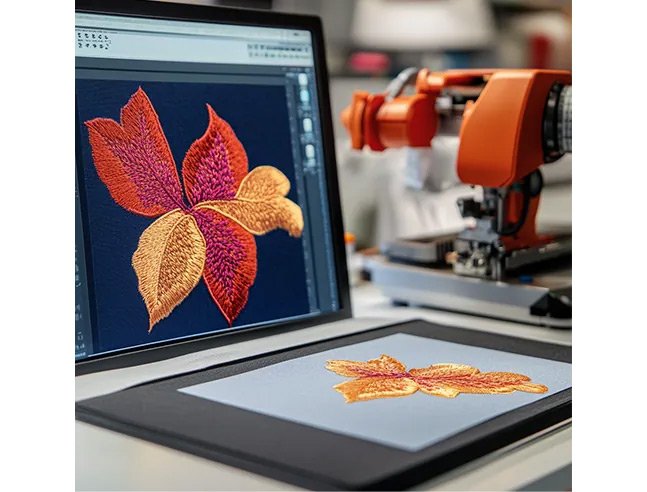
You found the perfect embroidery design online. It is exactly what you pictured for that denim jacket project. The colors are right. The size works. You pay for the download, unzip the folder, and stare at a file that ends in .PES. Your heart sinks a little because you know your Bernina machine does not speak that language. Bernina machines have their own dialect. They want .EXP or .ART files. You could scrap the design and start hunting again, but that feels like admitting defeat over three little letters at the end of a file name. You do not have to surrender. You just need to Convert Embroidery File for Bernina Embroidery Machine use. This process is not as scary or as technical as it sounds. You do not need a computer science degree or a thousand-dollar software suite. You just need to know the right tools and the right sequence. Let me walk you through exactly how to bridge the gap between the file you have and the file your Bernina craves.
Why Bernina Machines Demand Special Treatment
Bernina is the Swiss watch of the embroidery world. The engineering is precise. The stitch quality is legendary. The operating system is famously particular. Bernina does not play well with generic file formats because the machine relies on specific data embedded in the file to manage its unique features. Things like the basting stitch function, the precise thread tension presets, and the way the machine handles color changes all tie back to the file format.
If you try to trick the machine by simply renaming "design.PES" to "design.EXP," the machine will reject it. It might not even show up on the USB menu. That is because the internal structure of a PES file differs from an EXP file. A PES file contains a detailed color palette and specific trim commands written for Brother or Babylock machines. An EXP file, which is the native format for older Bernina models, handles color changes differently. And the ART format, which is the native format for newer Bernina machines, goes even further. An ART file is like a little container that holds not just the stitches but also the design notes, the hoop size recommendation, and the exact thread brand colors you used. When you convert an embroidery file for a Bernina, you are not just changing the wrapper. You are translating the instructions so the Swiss hardware understands what to do.
The Free and Fast Browser Method
If you need a file converted right this minute and you do not want to install anything on your computer, the browser is your best friend. There are several reputable online embroidery file converters that handle Bernina formats with ease. This is the method I recommend for one-off projects or for anyone who feels overwhelmed by downloading new software.
Here is the workflow. Open your web browser and search for a dedicated embroidery file converter. Look for one that explicitly lists .EXP and .ART in its output options. Not all generic file converters know what an embroidery file is. You want a converter built specifically for machine embroidery. Once you find one, the interface is usually dead simple. You click the big "Upload" button or drag your PES, DST, or HUS file into the designated box. The website reads the stitch data. Then you look for the dropdown menu that says "Output Format" or "Convert To." You scroll until you see "Bernina EXP" or "Bernina ART." Select the one that matches your specific machine model.
A quick note on the difference: If you own a Bernina 830, 730, or an older Artista model, you want EXP. If you own a newer Bernina 500 series, 700 series, or the 880 Plus, you want ART. The online tool does not care which one you pick. It processes the conversion in seconds. You click the "Convert" button, wait for the progress bar to finish, and then download the new file. Save it to a USB stick that is formatted to FAT32. Plug it into your Bernina. The design should appear and stitch out exactly as the original creator intended. No missing stitches. No weird jumps. Just a clean translation.
The Desktop Software Route for Total Control
The browser method works beautifully for ninety percent of cases. But maybe you are a power user. Maybe you have a massive library of designs from different sources, and you want to organize them, resize them, and tweak the colors before they ever hit the Bernina. If that sounds like you, investing in a desktop embroidery software package makes sense.
You do not need the top-tier digitizing software that costs as much as a used car. You need a file converter and organizer. Look at programs like Embird or Bernina's own ArtLink software. ArtLink is actually free from the Bernina website. Let me repeat that. Bernina gives away a piece of software that lets you open, view, and convert embroidery files to ART format. It is the most straightforward, risk-free way to convert an embroidery file for a Bernina machine. You download ArtLink. You install it. You open your PES or DST file inside ArtLink. You go to "File" and then "Save As." You select "Bernina ART" from the list. Done. Because the software comes directly from the manufacturer, you have a one hundred percent guarantee that the resulting file will be fully compatible with your machine's firmware. There is no guesswork.
With a desktop program, you also gain the ability to make small edits. Did you download a design that has a random green stitch where a blue stitch should be? You can change the color in the software before you save the ART file. Do you want to add a basting stitch around the perimeter to hold down your tricky fabric? You can add that in the software. These small adjustments are impossible with a quick online converter. The desktop route gives you creative control and ensures that what you see on the screen matches what you see on the hoop.
The Format Translation Trap and How to Avoid It
I need to warn you about a common pitfall that catches a lot of Bernina owners. It is the "double conversion" trap. This happens when you convert a file multiple times through different software platforms, and each conversion strips away a little bit of data fidelity.
Imagine you have a design in DST format. DST is a very basic, stripped-down format. It does not contain color names. It just says "Needle 1, Needle 2, Needle 3." You run that DST through a generic converter to make it an EXP. The generic converter guesses at the colors based on the needle order. It might assign a random shade of red to Needle 1 when the original designer wanted a specific burgundy. Then you take that EXP file and convert it to ART. The ART file locks in that wrong color guess forever.
To avoid this trap, you want to convert directly from the richest source file possible. If you have access to the native file format that the designer used, use that. A PES file contains more color information than a DST file. A HUS file contains more than an EXP. Start with the best quality original, and do only one conversion. Convert straight from PES to ART, or straight from HUS to EXP. Do not go PES to DST to EXP to ART. That is like making a photocopy of a photocopy of a photocopy. The edges get fuzzy. The details get lost. The Bernina machine will still stitch it, but the color sequence might be slightly off, and some of the fine details might not look as crisp as they did in the original listing photo.
Handling the Stubborn EXP Requirement on Older Machines
A special note for the owners of older Bernina machines that require EXP files. The EXP format is a bit of a diva. It is one of the oldest embroidery formats still in regular use. It has a specific quirk regarding color changes. An EXP file does not actually tell the machine to stop and wait for a thread change. It just places a tiny jump stitch and moves to the next color. This means that if you convert a modern design with twenty color changes to EXP, your Bernina might just sew right through the color stops, blending colors together in a muddy mess unless you manually stop the machine at the right moment.
The workaround for this is to pay attention to the "color change" commands during the conversion process. In software like Embird or the free Bernina ArtLink, you can look at the color sequence list. You can manually insert "STOP" commands before the file is saved as EXP. This tells the machine to pause and beep at you so you can change the thread spool. If you use an online converter and the design sews continuously without pausing for color changes, you know the converter stripped out the stops. You either need to find a different converter or download the free ArtLink software to add those stops back in manually. It is a small extra step, but it makes the difference between a professional-looking multi-color design and a single-color blur.
Organizing Your Converted Files for the Bernina Screen
Once you successfully convert an embroidery file for your Bernina machine, you want to make sure you can actually find it when you scroll through the USB menu. The Bernina interface displays file names in a specific way. It only reads a certain number of characters. If you leave the file name as "Floral_Wreath_Design_Final_Version_2_Edited.ART," the screen will cut it off and you will have no idea which file is which.
Rename the file before you drag it to the USB stick. Use short, descriptive names. Instead of a novel, use "FlowerWreath5in.ART." The "5in" tells you at a glance what size hoop you need. This simple organizational habit saves you from loading a 7-inch design onto a 5-inch hoop and getting an error message on the machine.
Also, Bernina machines prefer USB sticks that are 32GB or smaller and formatted to FAT32. If you are using a brand new, massive 128GB USB drive right out of the package, it is probably formatted as exFAT. The Bernina will not read it. Use an old, small USB stick. Format it on your computer to FAT32 before you load any converted files. This eliminates the "No Design Found" error that causes so much unnecessary panic.
Conclusion
Your Bernina embroidery machine is a precision instrument. It rewards you with flawless stitches when you feed it the right instructions. The file format is just the language those instructions are written in. Converting an embroidery file for a Bernina machine is simply the act of translation. It is a small, manageable step in the creative process.
Whether you choose the instant gratification of a free online converter or the deeper control of dedicated desktop software, the path forward is clear. You do not have to pass up on a beautiful design just because it was originally saved for a different brand of machine. You have the power to adapt, convert, and conquer. So go ahead. Download that design you have been eyeing. Run it through the converter. Load it onto a properly formatted USB stick. And watch your Bernina bring that design to life with the quiet, confident precision that only a Swiss machine can deliver.

 English
 French
 Spanish
 Portuguese
 Deutsch
 Turkish
 Dutch
Dutch
 Italiano
 Russian
 Romaian
 Portuguese (Brazil)
 Greek
Greek